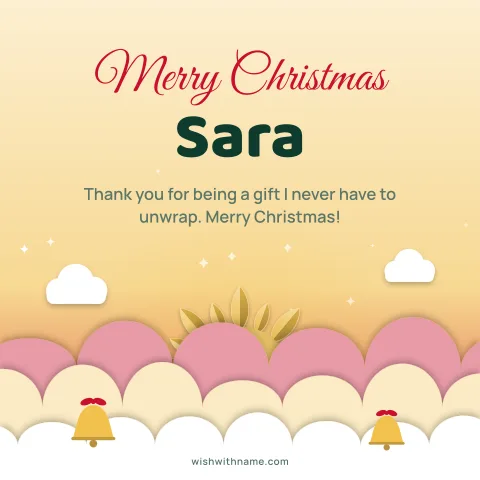
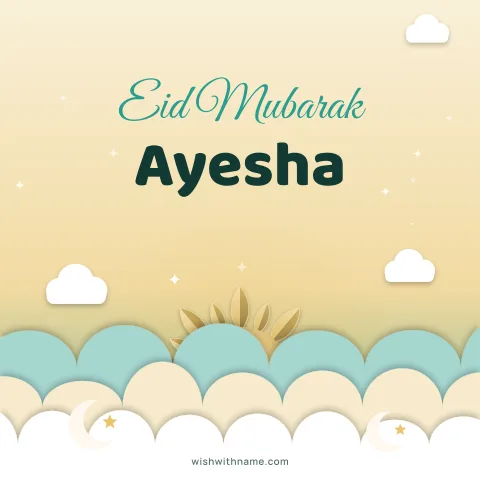
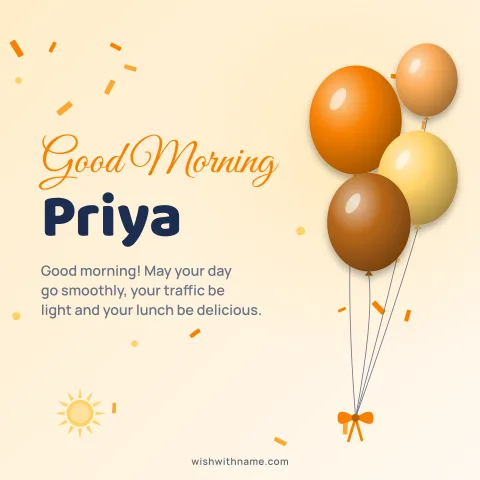
Why cards come out blurry
You download a crisp card, send it, and the person receives something soft with fuzzy edges around the letters. This is not your phone or the card. WhatsApp usually compresses images sent as ordinary photos to make them smaller and faster to deliver, and the exact amount is not published and can change between app versions.
Photos of people hide this well, because faces and backgrounds are soft anyway. Greeting cards suffer more: sharp lettering and flat areas of colour are exactly where compression leaves visible smudges and blocky patches. Thin, small text suffers most.
Option 1: the HD setting
Newer versions of WhatsApp offer a choice of quality when you send a photo. After you pick the image and before you tap send, look for an HD button at the top of the preview screen, and choose HD. The card still goes as a normal picture in the chat, so the person sees it straight away, but it is compressed less.
The button's look and position vary by phone and app version, and older versions may not have it. WhatsApp also has a setting for media upload quality in its storage and data settings on many phones. For current steps, check the WhatsApp Help Center, since menus change from time to time.
Option 2: send it as a document
For the sharpest result, send the card as a document instead of a photo. In the chat, tap the attach icon, choose Document, then pick the PNG you downloaded from your files or downloads folder. A document is generally sent as the original file, so every pixel arrives as it was.
The trade-off is that the person sees a file in the chat rather than a picture, and has to tap it to open. That is fine for someone who will save the card, such as a parent or a client, but less fun in a group, where a picture that appears instantly is nicer. On a computer, WhatsApp Web and the desktop app let you attach the downloaded file as a document in the same way.
Statuses and the share button
A WhatsApp status is usually compressed too, and you may not get the same quality choices there. For a status, use the tall 1080×1920 story card, so the image is not scaled to fit, and keep the name and greeting large.
The Share button on our cards opens your phone's share sheet. Picking WhatsApp from there sends the card as an image, so the usual compression applies. When quality matters most, download first and attach the file as a document.
Choose designs that survive compression
Even with ordinary sending, some cards hold up better than others. Large, bold lettering stays readable after compression; delicate script at a small size does not. Plain or gently graded backgrounds compress cleanly, while busy patterns behind the text turn muddy. Our cards are drawn at 1080 pixels wide, a common size for WhatsApp, so they are not shrunk and blurred a second time on arrival.
Keep the name short enough to stay big on the card, and put long messages in the chat text rather than on the image. Text typed into the message itself is never compressed. The wishes on each occasion page, such as Christmas or New Year, show whether they fit in a WhatsApp status, so you can paste the words and let the card carry the greeting and the name.